First’s curriculum is created and tailored by top educational experts to provide little ones with an academic head start and develop foundational skills such as vocabulary, counting, creativity, and more. It is designed for kids to navigate independently as well as to assist parents anytime and anywhere, providing a safe zone where they can allow their little ones to play & learn on their own.
Choose the plan that works best for you from our monthly or yearly subscription options. We offer our services through Apple App Store (for iOS devices and Apple TV), Google Play, Amazon Fire, Roku, or through our website with our exclusive offers!
One way to access the sign-up page in the app is by clicking on any locked video, bypassing the parental gate code, and following the on-screen instructions.
Upon creating your account, or after logging in to an existing account, you will be shown the different subscription plans that we offer, from which you can select the one that best meets your needs.
Please note that the app store purchases are handled exclusively by the store (Google Play or App Store), using information stored in your Apple ID or Google account. The information is not shared with us, nor can we charge your credit card.
Yes! You are able to access your subscription on mobile, tablet (iOS and Google) and on your TV (Roku, Apple TV & Amazon Fire )! . Just log in with your account on each of your devices and access all your videos, games, and much more.
The free trial gives you a chance to test out the app and see all its features and content for a certain period of time. It’s part of your subscription period, and it can be canceled free of charge within the offered days.
In the event that you don’t cancel by the last day of the trial, you will be charged for a full automatic-renewing subscription period, which will be renewed at the end of that period. To cancel a subscription, please read “How to cancel an Auto-Renewable subscription”.
You can watch the babyfirst TV Channel on all devices and as part of your subscription.
Note, the channel feature is currently only available for US residents.
Yes, adding videos to your offline library allows you to play them later without a network connection. To learn how to add videos to the offline library, please read “How to personalize a playlist “.
No. The First app is ad-free.
Please note that if you choose to view the live babyfirst TV channel through the app, the live broadcasting may include commercials as they are aired on TV.
Yes, you can add videos to your own favorites playlist to keep all your child’s most-loved episodes and songs in one place. To Favorite a video, pull out on the star tab on the top-left side of the app. Then tap on the star of the video you’d like to favorite. Be sure to leave the app on for a minute so it has time to download to your device.
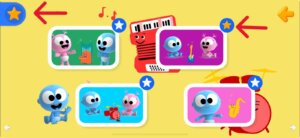
Any content that you mark as a favorite is automatically downloaded to your device. See the question “How to personalize a playlist” for instructions on how to mark a video as a favorite.
Frequently watched videos will also be downloaded to your offline library, automatically, so you could go back to watch them anytime.
If there isn’t as much content in offline mode as you expected, you may want to increase the amount of space you’ve given to the First app. This can be done by going to the Settings in the Parent Menu of the First app
The video can be removed by deselecting the shows that you want to remove ( tap star on the thumbnail) . After leaving and entering the series section again, you can see that the deselected episodes were removed. You also have the option to go to the app settings to delete all data, including favorites.
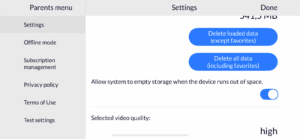
Go to the app settings. On the left bar, choose subscription management. Within the subscription management you will be able to review your subscription details
Can’t remember your account password? That’s ok! Find the “Forgot password” button in the app or in our website at app.babyfirsttv.com, and follow the instructions to reset your password.
Restoring an existing purchase from the old app is as easy as 1-2-3! Follow the instructions below, and your access will be automatically restored:
- Make sure you installed the new app using exactly the same Apple ID/Google Play account employed to purchase the previous subscription
- Launch the app and attempt playing any paid videos
- Use your credentials to sign in to your account, or create a new account if you haven’t yet. If you are signed in, skip to step 4. Whether you’re unsure what email was used to sign in, simply uninstall and reinstall the app, to clear any previous registrations, and sign in with a correct email address
- Scroll down to the bottom-left corner of the screen to find the “Restore Purchases” button, and click it to associate any previous purchases with your account.
- When prompted, enter your Apple ID/Google Play credentials, and allow the app a couple of minutes to complete syncing your App store purchase into your First account.
- That’s it! A new First account will be created for you and your previous purchases will be restored! Please don’t hesitate to contact us for any further assistance using the “Contact Support” button in the app settings, or by emailing us at [email protected].
- Enter http://app.babyfirsttv.com, click on SIGN IN and enter your credentials to make sure your account does have a registered subscription.
- Please make sure you have properly signed in to your First account in the app.
- If you still cannot find it but did receive the purchase invoice on your email, please find the “Contact Support” button within the app’s settings menu to reach out to us, describe your issue and make sure to attach a copy of the invoice.
- Go to payments.google.com.
- Along the left side of your screen, select Bills and Accounts.
- Select the subscription you want to cancel > Cancel subscription.
Important: Uninstalling an app will not automatically stop your subscription. You must cancel it first to end your subscription. If you uninstall the app without canceling your subscription, you will still be charged.
Canceling a subscription will not retroactively refund payments, and previously charged subscription fees cannot be prorated based on cancellation date.
If you cancel an existing subscription and decide to subscribe again later, you will be charged the most recent price.
For more info, please go to: https://support.google.com/googleplay/answer/2476088
Guided access limits users to one specific app, prevention them from switching to another program or returning to the home screen.
Enable guided access on iphone/ipad:
1. Launch the Settings app on your Iphone or Ipad
2. Tap on General
3. Go to Accessibility
4.Tap on Guided access under the Learning section
5. Tap the switch to turn on Guided Access
6. Tap on Passcode Settings
7.Tap Set Guided Access Passcode to set a password
8. Toggle Accessibility Shortcut to On, which allows you to triple-click the home button and enter Guided Access at any time
You can pin an app’s screen to keep it in view until you unpin it. For example, you can pin an app and hand your phone to a friend. With the screen pinned, your friend can use only that app. To use your other apps again, you can unpin the screen.
Turn on screen pinning
1. Open your phone’s setting app
2. Tap security or security & location } advanced } screen pinning
3. Turn on screen pinning
When screen pinning is on, you’ll see an option to ask for your PIN, pattern, or password before unpinning.
Pin a screen
After turning on screen pinning:
- Go to the screen you want to pin
- 2. Swipe up to the middle of your screen. If this doesn’t open your overview, go to the steps for Android 8.1 & below.
- At the top of the image, tap the app’s icon.
- Tap the pin
Unpin a screen
- Choose how to get around on your phone. Learn how to get around on your Android phone.
- To unpin a screen:
Gesture navigation: swipe up and hold - 2- button navigation: touch and hold back and home
- 3-button navigation: touch and hold back and overview
- If you are asked for your PIN, pattern or password, enter it.
Please contact our app support team with every issue. Make sure you provide a detailed description of the problem as possible, including screenshots and any additional piece of information that could lead us to help you quickly. Start by entering the app’s settings, and then find the “Contact Support” button. Remember to attach all information on the message.
You can also send an email to [email protected], we will be happy to reply.